USB Slideshow & Signage App Icon

USB Slideshow & Signage - Play Photos, Videos, and Music from USB on Roku

Turn a Roku device into a simple USB slideshow and digital signage player. Add photos, videos, and optional audio files to a USB drive, connect it to your Roku, then start a full-screen slideshow from the TV with interval controls, shuffle, background music, Gallery browsing, and image display settings.

USB Local Media Playback
Photos + Video Full-Screen Signage Loop
Music Optional Background Audio
USB Slideshow & Signage Roku screenshot showing USB slideshow and media playback

Start a USB Slideshow on Roku in Minutes

1

Prepare Your USB Drive

Add photos, videos, and optional audio files to a USB drive that your Roku device can read.

2

Connect and Open the App

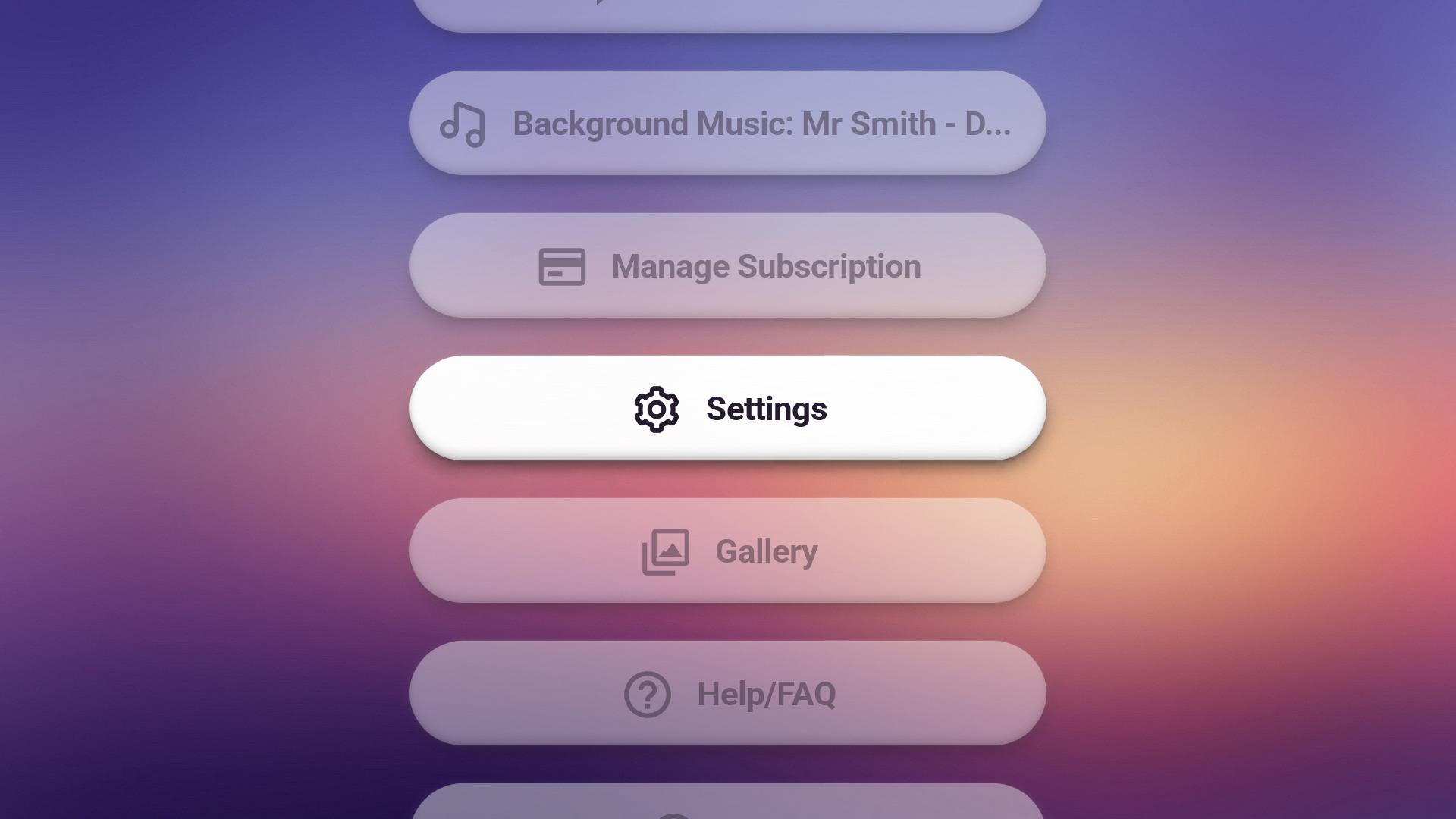
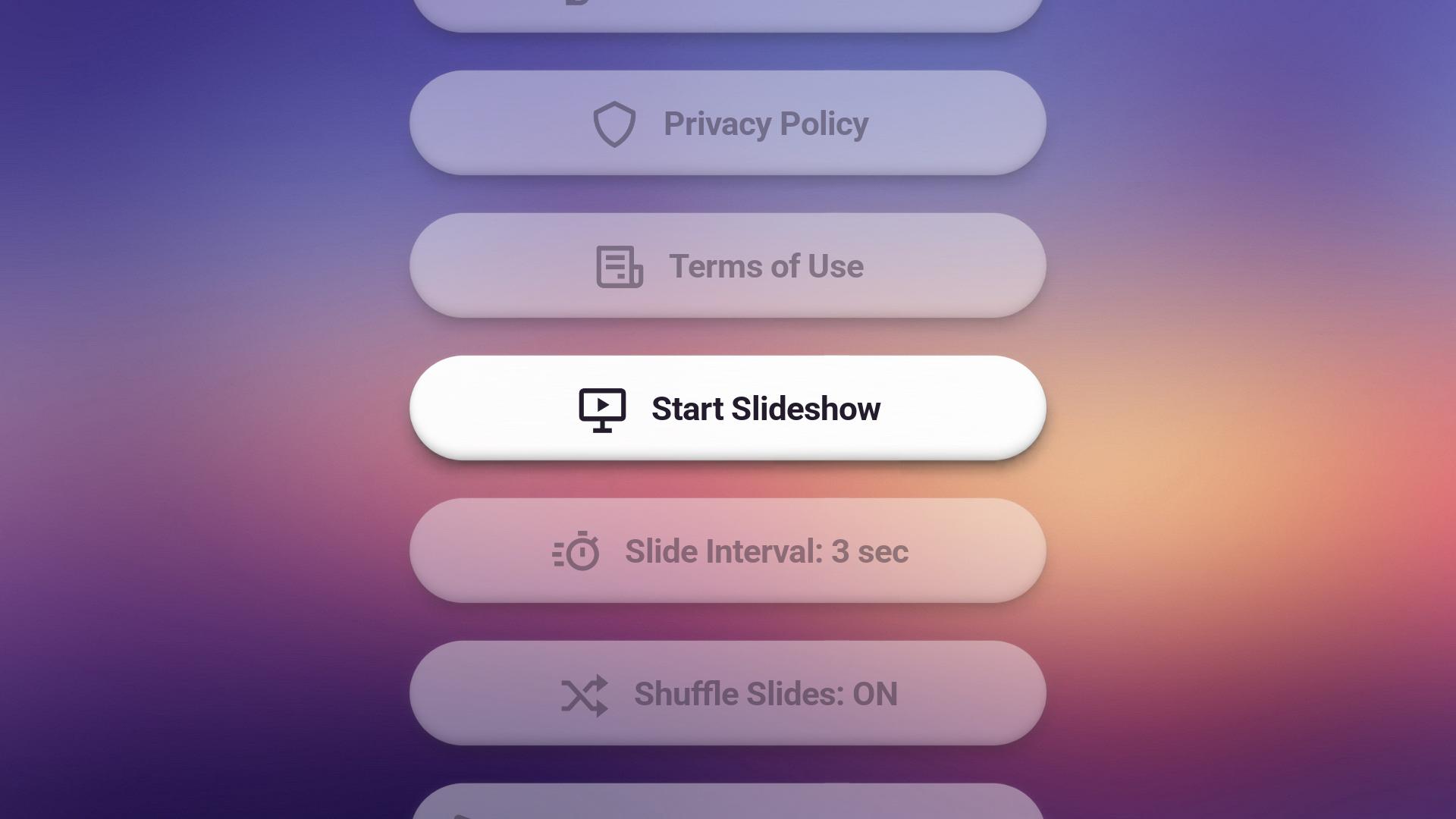
Plug the USB drive into your Roku device, open USB Slideshow & Signage, and use the Home Menu with your Roku remote.

3

Start Playback

Choose Start Slideshow for a full-screen loop, adjust interval or shuffle from the Home Menu, or browse media from Gallery.

Why USB Slideshow & Signage Works for TV Playback

💾

USB Media Playback

  • Play locally stored photos, videos, and optional audio from a USB drive
  • Scan folders and subfolders without running a separate media server
🎞️

Full-Screen Slideshow Loop

  • Images and videos play together in a continuous TV-friendly loop
  • Videos use their own audio while background music pauses
🎚️

Simple Playback Settings

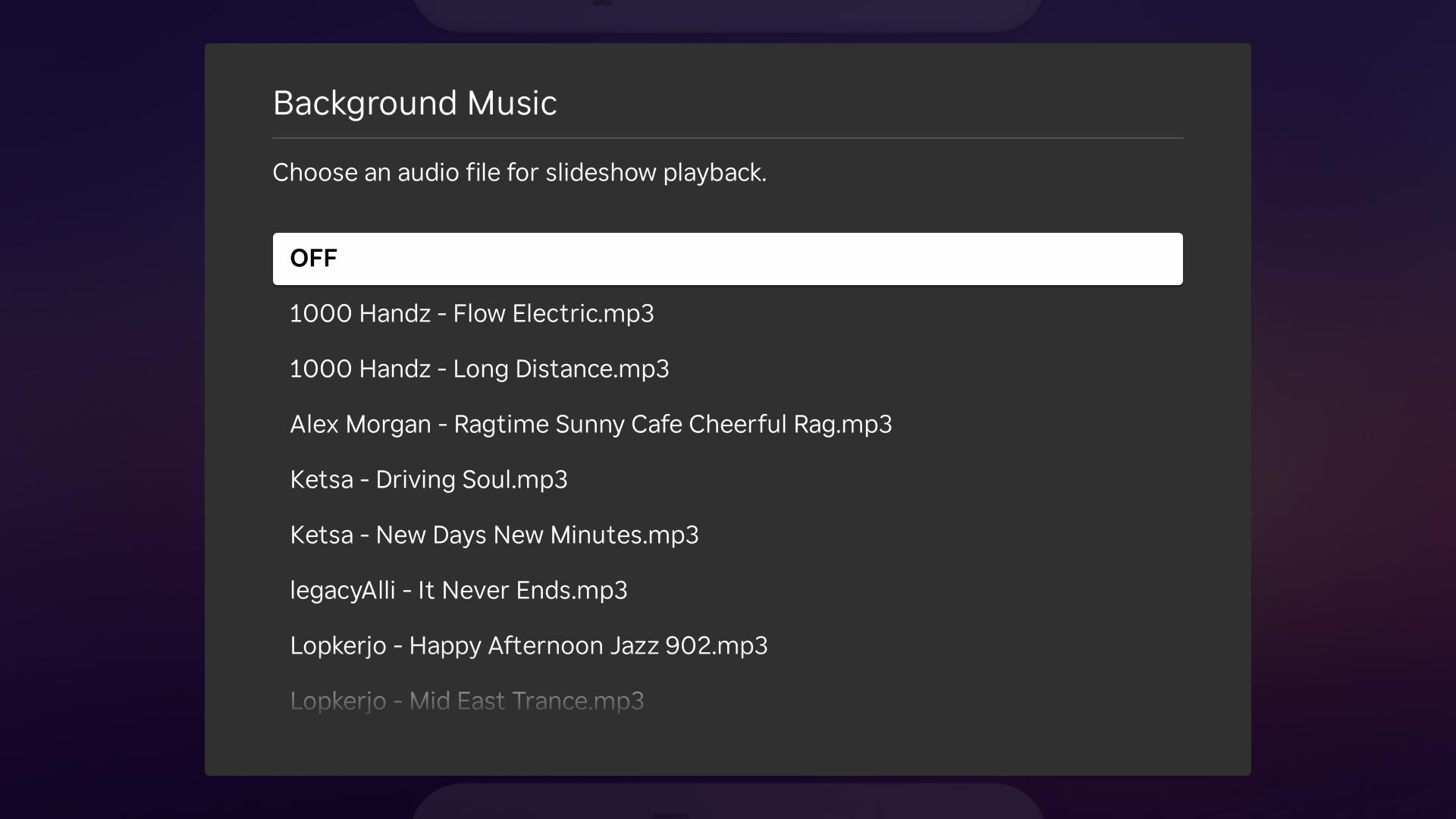
  • Pick slide interval, shuffle mode, background music, display mode, and image background color
  • Saved choices survive app restarts through Roku registry storage
🗂️

Gallery Browsing

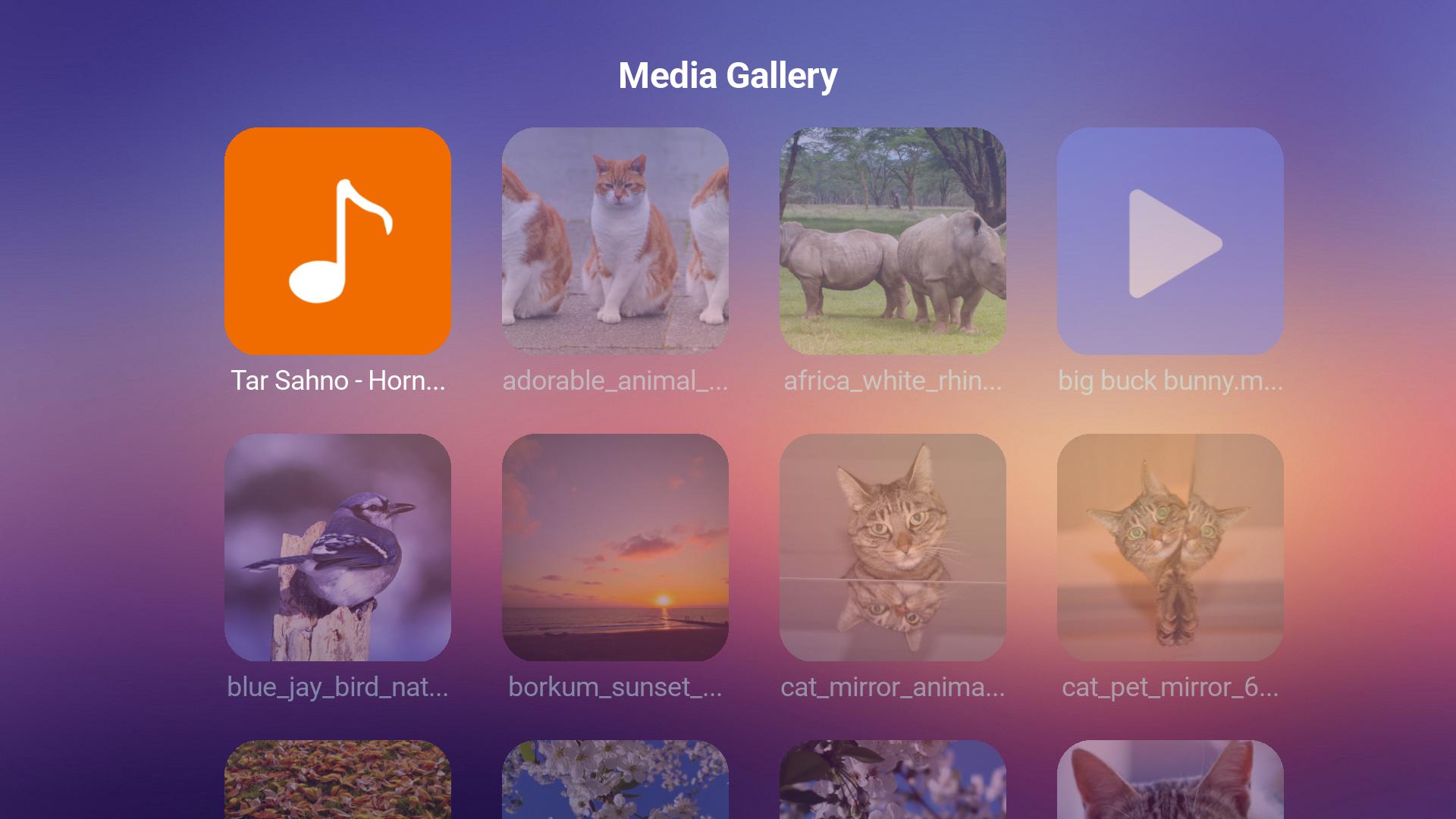
  • Browse USB folders and media in a Roku remote-friendly grid
  • Start playback directly from selected unlocked images or videos
💳

Roku Subscription Unlock

  • Free access can limit larger USB collections
  • Subscribe or manage subscription through Roku platform flows
🛟

Built-In Help and Support

  • Help/FAQ, Privacy Policy, Terms of Use, About, and Support & Feedback pages are available from the app
  • Support and feedback options use QR-oriented external resources

Perfect For

🏪

Retail Displays

Loop product photos, promos, service lists, or announcements from a USB drive.

🍽️

Menus and Notices

Show simple menu boards, venue notices, rotating schedules, or information screens.

🎉

Events and Parties

Play photo and video loops with optional music on a Roku-connected TV.

🏠

Home Slideshows

Browse and play personal photo and video collections from USB storage.

Frequently Asked Questions

What is USB Slideshow & Signage? +

It is a Roku app for playing USB photos, videos, and optional music as a full-screen slideshow or signage loop.

Do I need internet for local USB playback? +

Local USB playback does not require a Service Provider media server. Internet may still be needed for Roku subscriptions, Help/FAQ, legal pages, support, and feedback links.

Which file types are recognized? +

The app recognizes many common image, video, and audio extensions. Actual playback depends on Roku platform codec, container, device, and file support.

Can I choose slide timing? +

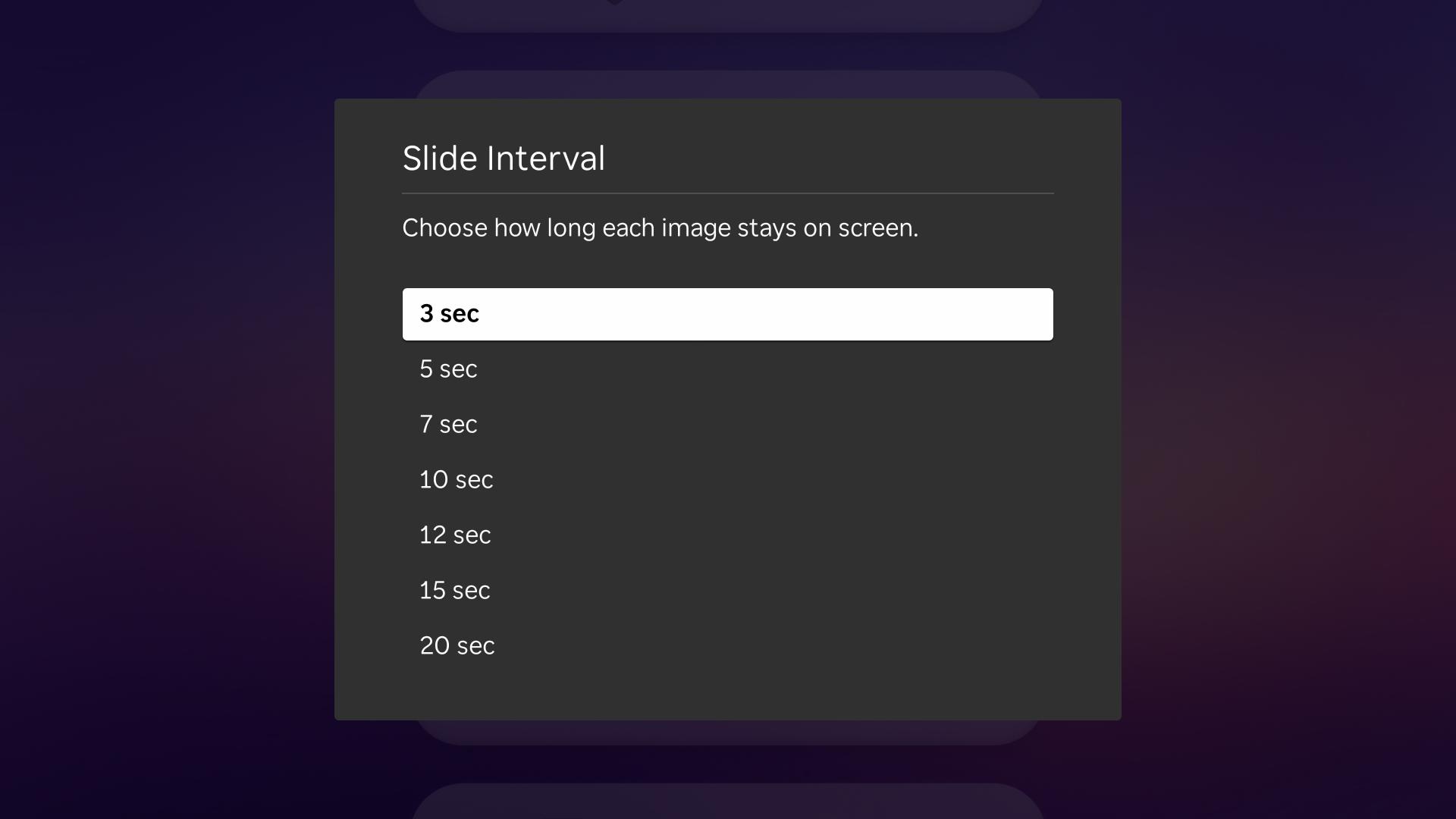
Yes. The Home Menu includes fixed slide interval options such as 3, 5, 7, 10, 12, 15, and 20 seconds.

Can I shuffle slides? +

Yes. Shuffle Slides can be toggled from the Home Menu and applies to Home Menu Start Slideshow visual order.

Does the app support digital signage? +

Yes. It is designed for simple USB-based slideshow and signage loops. Test your media before public display and keep backup copies of important files.

Can I schedule playlists? +

No. The current app focuses on USB browsing and slideshow/signage playback. It does not provide time/date scheduling or cloud playlist management.

Where can I manage subscription information? +

The app includes Subscribe and Manage Subscription options. Purchases, renewals, and entitlement recovery are handled through Roku.

Turn Your Roku Into a USB Slideshow and Signage Player

Download USB Slideshow & Signage and play photos, videos, and optional music from a USB drive on the big screen.